

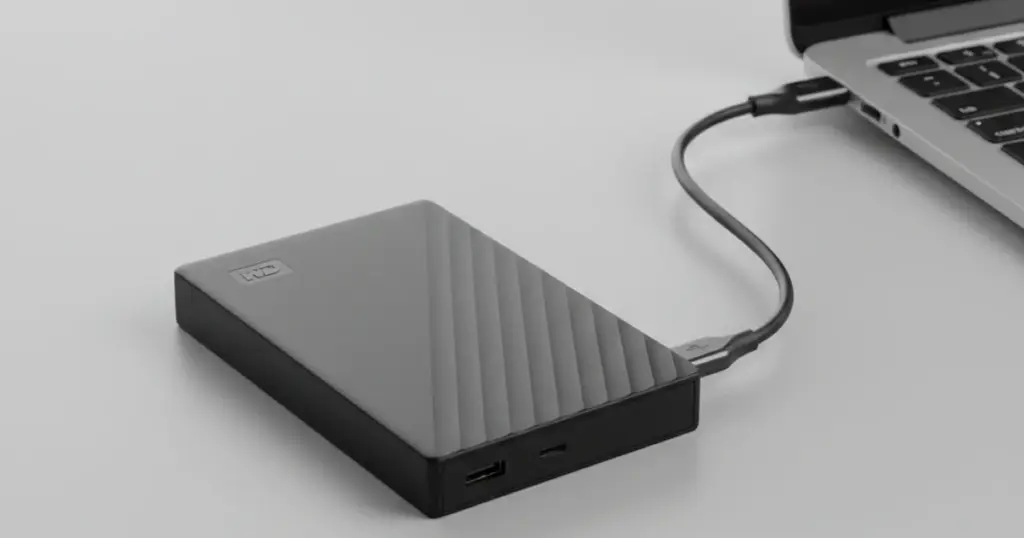
If your external hard drive is not recognised, the priority is simple: protect the data first.
This issue can be caused by power instability, USB connectivity faults, driver or file system problems, or a physical drive failure. The challenge is that many common “fixes” can make the situation worse.
This post gives you a structured, low-risk way to diagnose the cause on Windows and Mac. You will also get clear stop points that tell you when it is time to escalate to professional recovery.
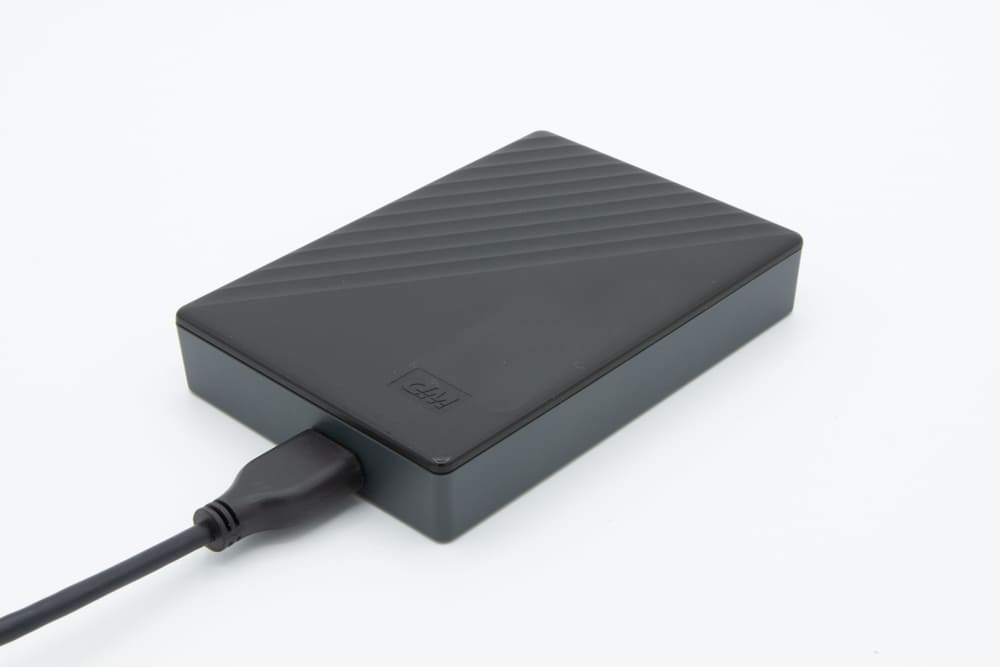
External Hard Drive Not Recognised: What This Means
When an external hard drive is not recognised, the computer is failing to complete the detection and access chain. This can happen before the drive powers up correctly, during USB connection negotiation, or at the point where the operating system attempts to mount the file system.
In practical terms, the situation usually falls into one of four buckets. The drive is not getting stable power, the USB connection is compromised, the device is detected but the volume is not readable, or there is an underlying hardware fault that prevents normal operation.
The business risk is straightforward. The wrong next action can shift a recoverable case into a partial recovery or permanent loss. The goal of this guide is to help you confirm what is happening quickly, avoid high-risk actions, and choose the correct escalation path.
Industry-Leading 99% Success Rate
No hidden fees. No surprises. Just expert data recovery you can trust. We handle everything from simple file loss to extreme data recovery cases. If we can’t recover your data, no one can.
Quick Triage: Stop Doing These 6 Things First
If the data matters, treat this as a risk-managed incident. These actions commonly escalate damage and reduce recovery odds:
- Do not run CHKDSK, First Aid, or “Repair Disk”: These tools can rewrite metadata and convert a logical issue into deeper corruption.
- Do not format the drive, even if prompted: Formatting changes structures that recovery engineers rely on.
- Do not keep unplugging and reconnecting repeatedly: If power is unstable or the drive is failing, repeated spin-ups increase wear.
- Do not use random “driver fixer” utilities: They introduce variables and can install incorrect components.
- Do not copy large volumes if the drive is unstable: If it disconnects, clicks, beeps, or slows heavily, heavy reads can accelerate failure.
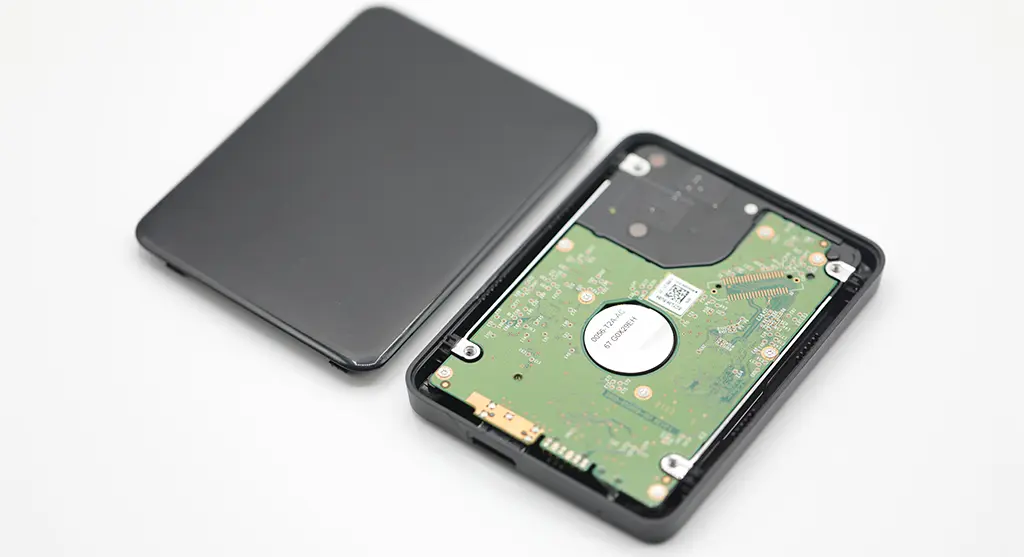
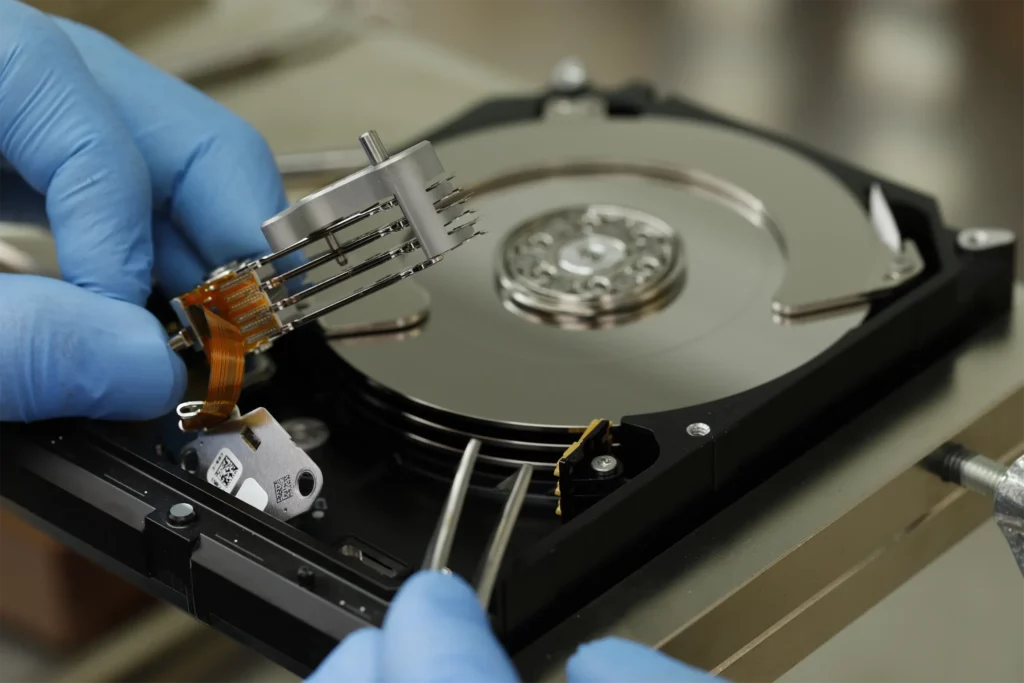
- Do not open the drive enclosure: Exposed platters and heads are extremely sensitive. This is a cleanroom-only task.
If you hear beeping from a Seagate external drive, learn more in our guide on Seagate external hard drive beeping.
Hard stop scenarios (pause immediately):
- The drive clicks, beeps, or spins down repeatedly
- It appears briefly then disconnects
- You smell burning or see heat or smoke
- It was dropped, exposed to liquid, or hit by a power surge
Fast Checks in 5 Minutes
- Power: connect directly to the computer. For desktop drives, confirm the power adapter is firmly seated and stable.
- Port: switch to a different USB port (rear ports on desktops are typically more stable).
- Cable: swap the USB cable. Cable failure is common and easy to rule out.
- Avoid hubs: remove USB hubs, docks, and most adapters during testing.
- Second computer: test the drive on another computer to separate drive-side issues from OS-side issues.
Don't Let Data Loss Ruin Your Business
Minimize business disruption. We retrieve lost data fast, so you can focus on what matters.
OS Checks (Windows and Mac)
Windows: Disk Management and Drivers
Open Disk Management by right-clicking Start and selecting Disk Management. Then locate the external drive in the lower panel.
What you may see:
- Drive letter present: detection is OK. Access issue is likely file system or permissions.
- Unknown / Not Initialized: do not initialize if you need the data.
- Unallocated: partition structure is likely damaged.
- Not listed: connection, enclosure, or drive hardware is more likely.
Open Device Manager by right-clicking Start and selecting Device Manager. Expand Disk drives and Universal Serial Bus controllers.
Low-risk actions:
- If the drive shows a warning icon: Uninstall device → restart PC.
- If USB controller looks unstable: switch USB port → restart PC.
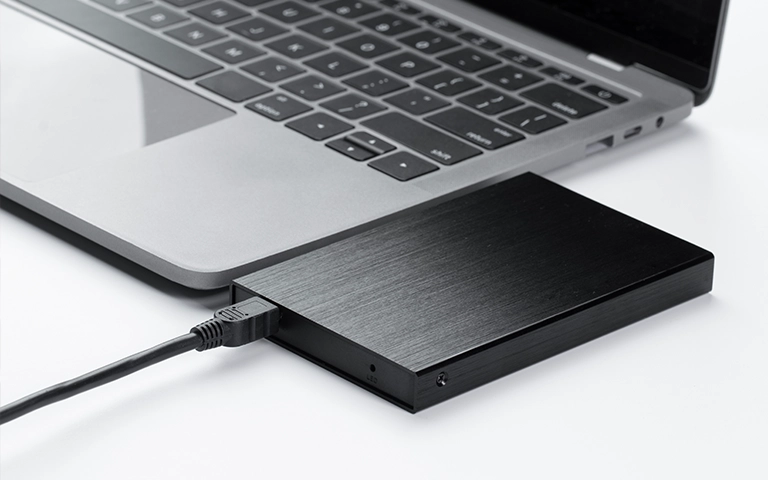
Mac: Disk Utility and Connection Prompts
Open Disk Utility, then select View and choose Show All Devices. Look for the external drive in the left panel.
What you may see:
- Device appears, volume missing: mount or file system issue.
- Device appears, volume greyed out: treat as high-risk, avoid repair if data matters.
- Nothing appears: connection, enclosure, or drive hardware is more likely.
If macOS blocks the accessory, approve any USB related prompts in System Settings (exact wording varies by macOS version). During testing, connect directly and avoid hubs or adapters.
If you need the data, do not format, erase, or run repair actions that rewrite structures.
When DIY Ends: Signs You Need Data Recovery
This is where DIY turns into a risk decision. If the data matters, avoid actions that increase read stress or overwrite structures.
Escalate to professional recovery if the drive clicks, beeps, repeatedly spins up and down, disconnects, or freezes the computer. The same applies if Windows shows Not Initialized or Unallocated, or if the drive was dropped, exposed to water, or hit by a power surge.
Professional recovery focuses on controlled extraction: stabilise the device, image it safely, and work from the copy. Cleanroom work is used when mechanical faults are involved.
If this is Seagate-specific, you can explore our guide on Seagate external hard drive not showing up.
Emergency Data Recovery Services
Unexpected data loss? Whether it’s a crashed system, failed storage device, or accidental deletion, our 24/7 emergency recovery service ensures priority assistance to retrieve your critical data.
Contact Us for External Hard Drive Recovery
If your external hard drive is not recognised and the data matters, stop DIY now. Every extra power cycle and every repair attempt increases risk.
We provide a structured recovery path with clear communication, controlled handling, and a results-driven approach.
Speak with a specialist and request an evaluation so you can make a decision based on facts, not guesses.