

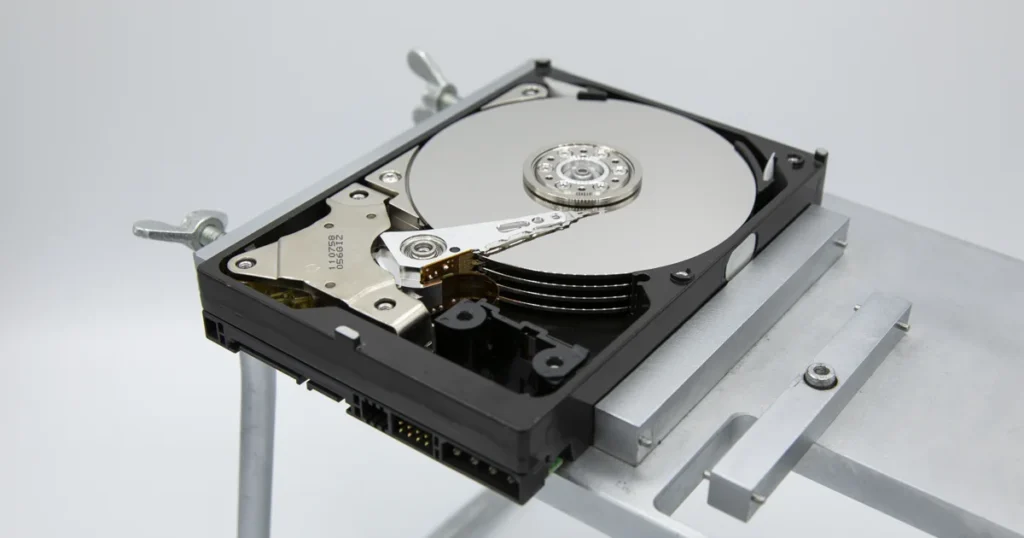
Hard drive firmware corruption is one of the most misunderstood failure types because it often looks like a simple detection issue. The drive may spin up, but it can fail to initialise, show the wrong capacity, or disappear without warning.
In this post, you will learn the key symptoms, the most common triggers, and the safe do not do boundaries. You will also see when it is time to stop troubleshooting and move to professional recovery.
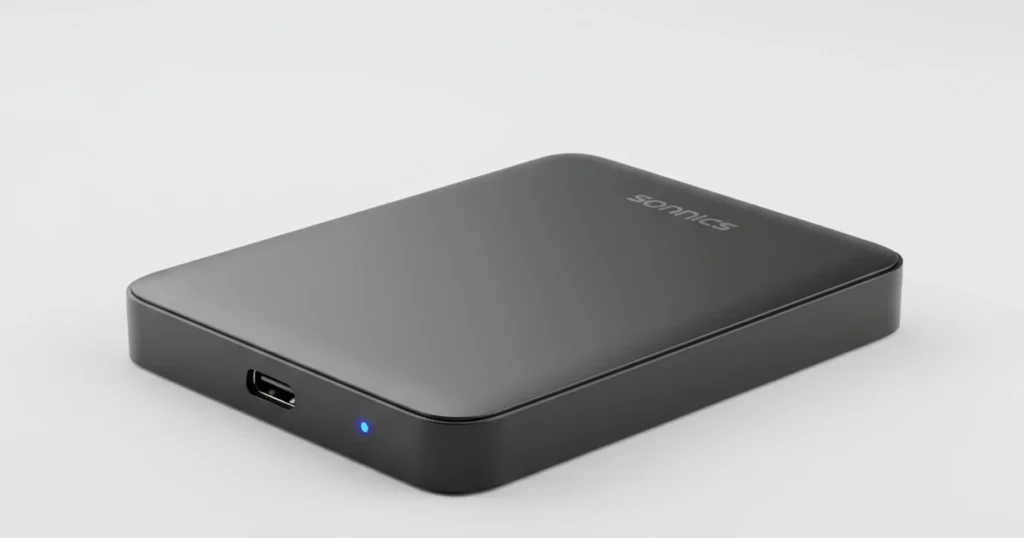
Firmware Corruption in Hard Drives: Quick Overview
Hard drive firmware is the internal control layer that tells the drive how to start, identify itself, and read data.
When firmware becomes corrupted, the drive can fail before your computer even has a chance to load files or mount a volume.
This is why firmware problems often look like “not detected,” wrong capacity, or constant freezing during connection. The drive may still power on and spin, but it cannot complete its internal startup sequence reliably.
Quick note:
Firmware corruption is not a normal Windows issue. If the drive is unstable or missing at the system level, the priority is protecting recoverability, not forcing detection.
Firmware vs File System vs Hardware Failure
Firmware corruption sits in a different layer than most users assume. The fastest way to avoid wasted effort is to separate these three categories.
Firmware corruption
The drive fails during startup or identification. Common signs are not detected in BIOS, wrong capacity, intermittent detection, or the system hanging when the drive is connected.
File system corruption
The drive is detected, but the volume will not mount or shows as RAW. The disk appears in Disk Management, but files are inaccessible in File Explorer.
Hardware failure
Electronics, heads, or media issues can block stable reads. Clicking is a common red flag. If you are hearing abnormal sounds, see why is my hard drive clicking.
Practical rule:
if the drive is not consistently detected, treat it as firmware or hardware first. File system repair attempts are the wrong play in that stage.

Top Symptoms of Hard Drive Firmware Corruption
Firmware corruption does not always look dramatic. It often presents as repeatable detection and identification anomalies.
- Hard drive not detected: The drive does not show in BIOS or Disk Management, or the system hangs during detection. For the broader detection angle, read more in hard drive not detected.
- Wrong capacity or abnormal size: The drive appears with a strange capacity, such as 0MB, a fraction of expected size, or an obviously incorrect value. That is a classic firmware identification failure.
- Stuck busy or extremely slow response: Windows may freeze, Disk Management may load indefinitely, or the drive may appear but never become usable. This often indicates the drive is trapped in firmware routines.
- Intermittent detection and random disconnects: The drive shows briefly, then disappears, or only shows on certain ports. This can be firmware instability, but it can also be the enclosure on external drives.
- Unusual sounds paired with detection issues: Clicks or repeated spin-up cycles combined with non-detection often mean the drive cannot complete its internal startup sequence reliably.
Don't Let Data Loss Ruin Your Business
Minimize business disruption. We retrieve lost data fast, so you can focus on what matters.
Safe Checks That Do Not Make It Worse
Firmware suspected cases need a conservative approach. The goal is confirmation, not correction.
Keep attempts minimal
If the drive is intermittent, limit reconnects and power cycles. Repeated retries can escalate the failure state.
Change the simplest variables only
Swap cable, port, and computer. For external drives, avoid hubs and front-panel ports. For internal drives, reseat SATA and power cables.
Observe where detection fails
Check BIOS first, then Disk Management.
- If it never appears in BIOS, stop software troubleshooting.
- If it appears but Disk Management hangs, treat it as unstable and avoid writes.
Do not approve write prompts
If Windows prompts to initialize, format, or repair, cancel. Those actions can overwrite structures needed for recovery.
Avoid firmware tools
Do not run firmware “repair,” “unlock,” or “rebuild” utilities. Firmware writes are high impact and frequently irreversible.
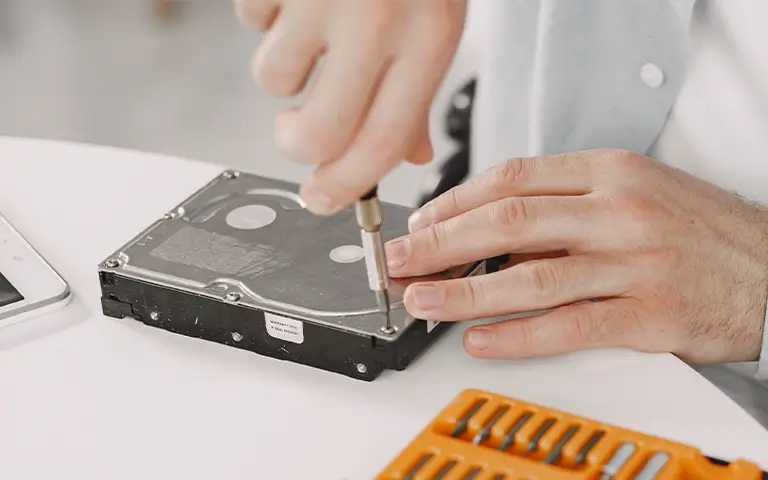
What Not To Do: High-Risk Actions
If you suspect firmware corruption, these are the moves that typically make outcomes worse.
- Do not initialize or format: Even if Windows suggests it, initialization and formatting can overwrite key metadata and complicate recovery.
- Do not run CHKDSK or “repair” utilities: These are write-heavy and assume a stable drive. Firmware level instability is the opposite of stable.
- Do not keep power cycling to “force detection”: If the drive only shows sometimes, repeated retries can worsen instability and reduce the remaining readable window.
- Do not attempt firmware flashing or ROM swaps: DIY firmware work is not a standard troubleshooting step. It is easy to write incorrect modules or create mismatched adaptive data.
- Do not open the drive: If noise is present, opening outside a controlled environment adds physical risk and can turn a firmware suspected case into a media damage case.
Industry Certifications
Trusted by leading organizations and certified by industry authorities





When Firmware Corruption Looks Like “Not Detected”
Firmware corruption frequently presents as a detection problem because the drive fails before it can identify itself properly. That is why you may see zero capacity, no model number, or the system freezing during boot or Disk Management load.
This is also why generic Windows fixes often fail. If the device is not consistently detected at the hardware level, software cannot reliably read or rebuild anything.
Bottom line: once detection becomes unstable, the strategy shifts from troubleshooting to controlled imaging and recovery workflows designed for firmware-level failures.
If your external drive is acting inconsistent, see Seagate external drive not working.
Our Recovery Approach for Firmware Level Failures
When firmware corruption is suspected, we run a controlled workflow designed to stabilise the drive first and extract data without unnecessary writes.
We start by confirming the symptom pattern, including how the drive identifies, whether capacity is abnormal, and where detection fails. Then we stabilise the device and image it with professional equipment so the recovery work happens on a clone, not on the original drive.
Once imaging is secured, we reconstruct file systems and validate file integrity to ensure the recovered data is usable. If hardware symptoms are present, we handle that layer before extraction to protect the media and maximise recoverability.

Contact Us for Firmware Corruption Recovery
Hard drive firmware corruption is not a standard troubleshooting problem. If your drive is not detected, shows the wrong capacity, or causes the system to freeze during connection, continued DIY attempts usually increase risk.
If the data matters, escalate to professional recovery. Contact us and we will confirm the failure pattern and advise the safest recovery path based on the drive’s behavior.
Emergency Data Recovery Services
Unexpected data loss? Whether it’s a crashed system, failed storage device, or accidental deletion, our 24/7 emergency recovery service ensures priority assistance to retrieve your critical data.