

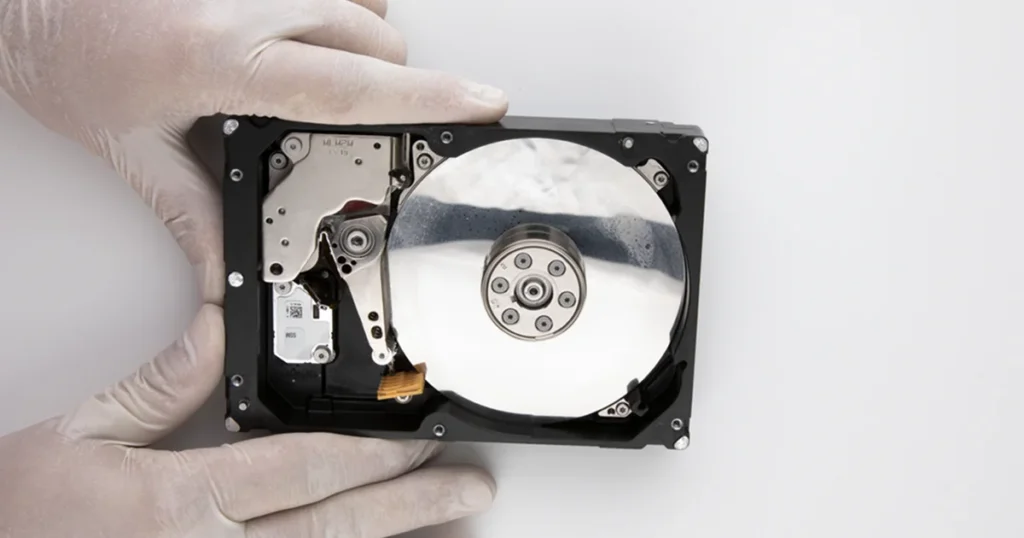
When a hard drive is not detected, you are not dealing with one problem. You are dealing with a visibility failure that can be caused by anything from a bad cable to a drive that cannot initialise internally.
This guide breaks the issue into clear checkpoints such as BIOS, Disk Management, and File Explorer so you can identify what is happening without guessing.
You will also see which checks are safe and which actions create unnecessary risk, especially if the drive contains important business data. By the end, you will know when basic troubleshooting makes sense and when it is time to stop and move to professional recovery.
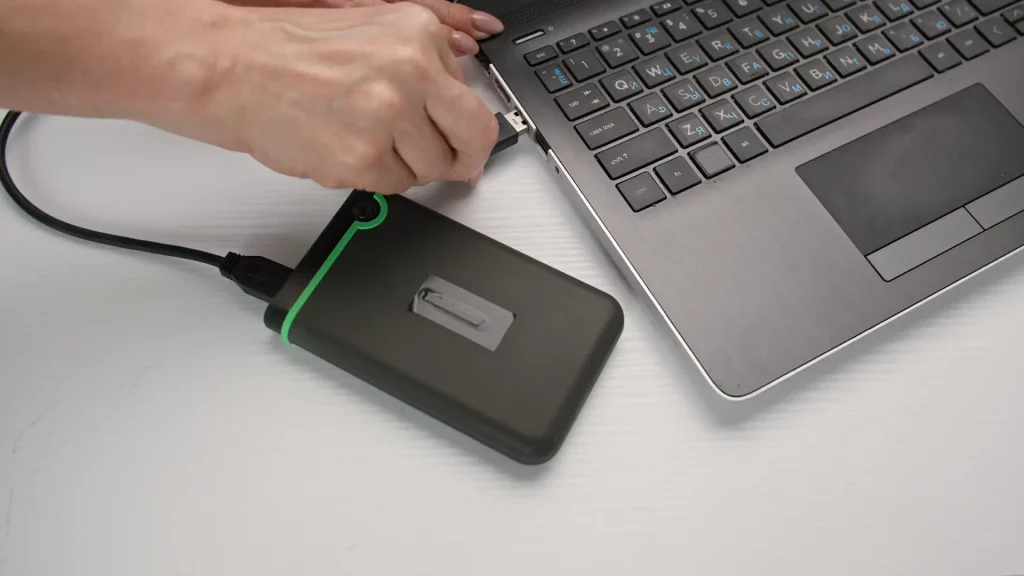
Hard Drive Not Detected: What This Really Means
“Not detected” can mean different things depending on where you are looking.
- Not in BIOS or UEFI: The system cannot reliably communicate with the drive. This is often a hardware or firmware-level problem.
- Not in Disk Management: Windows cannot enumerate the device or its disk structure. This can be connection, driver, enclosure, or drive failure.
- Not in File Explorer: The drive may be detected, but the volume has no letter, the file system is corrupted, or the partition is missing.
Key point
The more “upstream” the failure is, the less value software troubleshooting has. If the data matters, your goal is to avoid any action that writes to the drive until you know what you are dealing with.
Industry Certifications
Trusted by leading organizations and certified by industry authorities





Quick Triage: Stop vs Safe Checks in 5 Minutes
Stop immediately if you see any of these
- Clicking, beeping, grinding, or repeated spin up and spin down
- Burning smell, heat spikes, or visible damage
- The drive appears and disappears randomly
- BIOS freezes or takes much longer when the drive is connected
If any of the above is true, limit power cycles. Every retry can reduce recoverability.
Safe checks you can do quickly
- Swap to a different USB cable and a different port
- Avoid USB hubs and front panel ports
- Try another computer
- Use a different power adapter for desktop-class external drives
If it is an internal HDD
- Reseat the SATA and power cables
- Try a different SATA port and a different SATA cable
- Confirm the drive is listed in BIOS before doing anything in Windows
Quick note:
if the data is important, do not initialize, format, run CHKDSK, or install “repair” tools until the drive is consistently detected.

Where It Fails: BIOS vs Disk Management vs File Explorer
Not detected in BIOS or UEFI
This is the highest-risk scenario. The computer cannot reliably identify the drive at the hardware layer. Common drivers:
- Power or cabling problem (internal)
- PCB or firmware fault
- Mechanical failure
Operating rule: stop software troubleshooting. Focus on stabilising the device and recovery strategy.
Detected in BIOS, not detected in Disk Management
The drive may be present, but Windows cannot enumerate it properly. Typical causes:
- USB enclosure or bridge board issue
- Driver or controller conflict
- Unstable device that drops during enumeration
If this is an external drive and it behaves like this, read more in our external hard drive not recognised guide.
Detected in Disk Management, missing in File Explorer
This is usually logical, not physical. Typical causes:
- No drive letter assigned
- Partition marked as RAW
- Corrupted file system metadata
- Partition missing or unallocated space shown
This is the scenario where safe, non-writing diagnostics can still be productive.
If this is an external drive and Windows cannot enumerate it properly, the issue is often the enclosure, USB bridge, cable, or power path. For a deeper breakdown, read more in our external hard drive not recognised guide.
Don't Let Data Loss Ruin Your Business
Minimize business disruption. We retrieve lost data fast, so you can focus on what matters.
High-Risk Mistakes to Avoid
These are the actions that consistently turn a recoverable case into a harder one.
- Do not initialize, format, or convert the disk: If Windows prompts you to “Initialize Disk” or format, cancel it. Those steps can overwrite key structures needed for recovery.
- Do not run CHKDSK or file system repairs on an unstable drive: Repairs are write-heavy. If the drive is failing, repairs can accelerate degradation and increase corruption.
- Do not keep reconnecting and power cycling: If the drive disconnects, clicks, or only appears sometimes, every retry can reduce the remaining readable window.
- Do not use cloning or imaging tools unless the drive is stable: Imaging is the right strategy, but only when the device is consistently detected and not showing hardware distress.
- Do not open the drive outside a controlled environment: Opening a hard drive outside a clean environment is a common point of no return. Dust and handling damage the media fast.
If the drive disconnects or shows wrong capacity, see related cases in Seagate external hard drive not showing up.

How We Recover Data From a Synology That Won’t Boot
When a hard drive is not detected, our priority is simple: confirm the failure point, stabilise the device, then extract data without adding risk.
Step 1: Detection and failure-point verification
We check where detection breaks: BIOS, Disk Management, controller level, or enclosure level. This determines whether the issue is logical, electronic, firmware, or mechanical.
Step 2: Non-invasive stabilisation
If the drive is unstable or intermittent, we minimise power cycles and isolate the weakest link (USB bridge, power path, PCB, firmware startup).
Step 3: Controlled imaging first
We create a sector-by-sector image using professional equipment and tuned read strategies. All recovery work happens from the image, not the original drive.
Step 4: Data reconstruction and validation
We rebuild file systems and directory structures as needed, then validate file integrity so the output is usable, not just copied.
If you want a full view of capability coverage, explore our hard drive data recovery service page.

Contact Us for Hard Drive Not Detected Recovery
When a hard drive is not detected, the safest move is to stop anything that writes to the disk and avoid repeated reconnect attempts. The cause can be simple, but the wrong action can permanently reduce recoverability.
If the data is important and the drive is missing in BIOS, disconnecting, or making noise, escalate to professional recovery. Contact us to get a clear recovery path based on the symptoms and the drive type.
Emergency Data Recovery Services
Unexpected data loss? Whether it’s a crashed system, failed storage device, or accidental deletion, our 24/7 emergency recovery service ensures priority assistance to retrieve your critical data.