
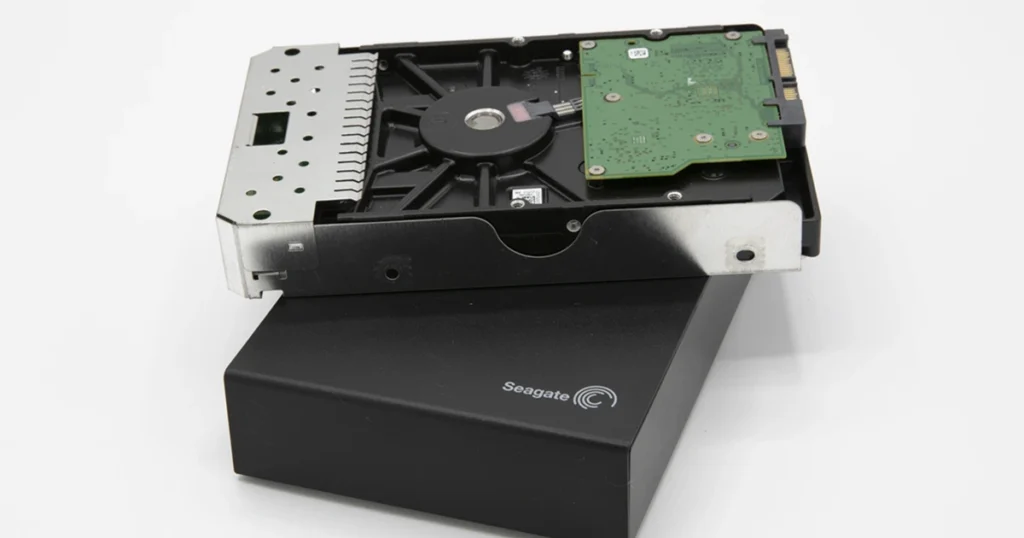
Your Seagate external hard drive not showing up is not a minor inconvenience. It is a visibility failure, and the root cause can range from a simple USB path issue to a drive that is actively degrading.
In this guide, you will see what the symptoms typically mean, how to quickly classify your situation, and which actions are safe when you care about the data.

What “Not Showing Up” Usually Means
This issue falls into a few clear buckets. Identify where the drive is missing, because that points to the most likely failure layer.
Where it is not showing up
- Not in File Explorer (Windows) or Finder (Mac): the OS is not presenting a usable volume.
- Not in Disk Management (Windows) or Disk Utility (Mac): the system may not be detecting the device at all.
- Shows as “Unallocated,” “RAW,” or “Unknown”: partition or file system structures are damaged.
- Shows with the right size, but no access: logical corruption or weak sectors are preventing a mount.
- Shows, then disconnects repeatedly: unstable power, failing USB bridge, or hardware degradation.
What this usually indicates
- Visibility problem: drive letter, mount point, or volume metadata issue.
- Connectivity problem: cable, port, power, or enclosure interface problem.
- Media problem: bad sectors, firmware faults, or mechanical wear that blocks stable reads.
Don't Let Data Loss Ruin Your Business
Minimize business disruption. We retrieve lost data fast, so you can focus on what matters.
Top Root Causes
Connection and USB path
This is the most common starting point. A failing cable, loose connector, unstable USB port, or a hub can block reliable detection. The drive may power on but never fully enumerate, so it stays invisible in File Explorer or Finder.
Power delivery and enclosure electronics
Many Seagate external drives rely on enclosure electronics, including a USB bridge board. If power is inconsistent or that bridge is failing, the drive can appear and disappear, show the wrong capacity, or refuse to mount even when the OS detects a device.
Partition and file system damage
If partition or file system metadata is corrupted, the drive can show as RAW, unallocated, or unknown. The system sees hardware, but it cannot build a usable volume view, so it will not mount normally.
Media degradation and bad sectors
Bad sectors can prevent mounting because the OS cannot read critical structures fast enough or at all. Common signals include very slow detection, freezing during access, or repeated retries when the system attempts to read the disk.
Firmware and mechanical failure
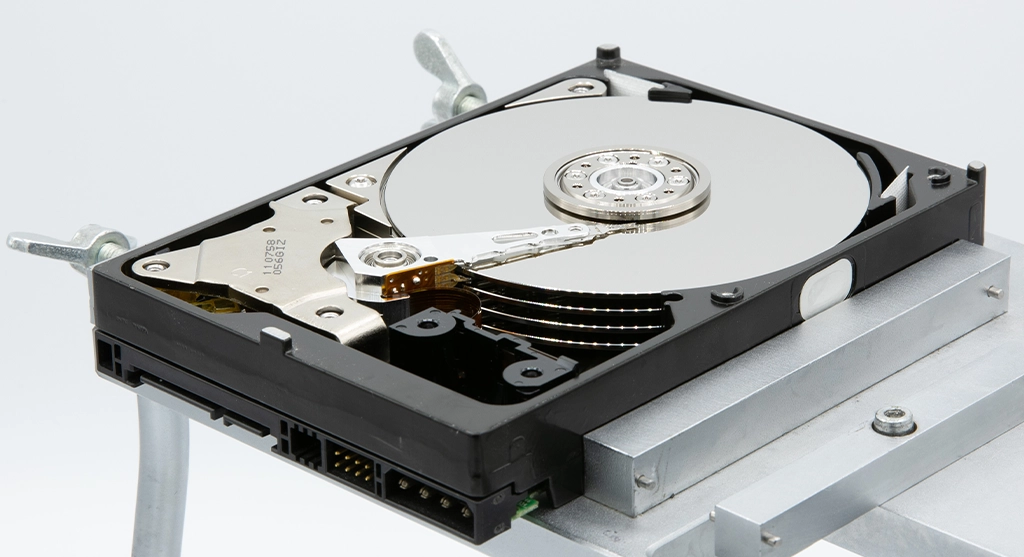
Firmware faults can stop the drive from presenting correctly even when the electronics are intact. Mechanical failure is the highest-risk scenario and often includes clicking, repeated spin up and spin down, or the system locking up during detection.

Fast Triage (Identify Your Scenario in 60 Seconds)
Use this to classify the failure quickly. Do not push past your scenario. That is how small issues become recoverability problems.
Step 1: Does the drive show in Disk Management or Disk Utility?
- No, it is not listed at all: likely USB path, power, enclosure electronics, or hardware failure.
- Yes, it is listed: move to Step 2.
Step 2: What status do you see?
- Correct size, but no drive letter or no mount: volume presentation or file system issue.
- RAW, unallocated, or unknown: partition or file system metadata damage.
- Correct size, but extremely slow or freezes: weak sectors or hardware degradation.
Step 3: Any instability signals?
- Disconnects repeatedly: power or enclosure electronics, sometimes failing media.
- Clicking or beeping: stop. High probability of hardware-level failure.
Fast classification
- Visibility issue: detected but not mounted or no drive letter.
- Logical issue: detected but RAW or unallocated.
- Hardware risk: not detected, unstable, noisy, or system freezes.
Your Data Security Is Our Priority
We understand the sensitive nature of your data. Our secure facilities and processes ensure your information remains protected throughout the recovery process.
Safe Checks You Can Do Without Making It Worse
These checks are designed to protect the data. They focus on observation and low-impact validation, not repair.
Low-risk checks
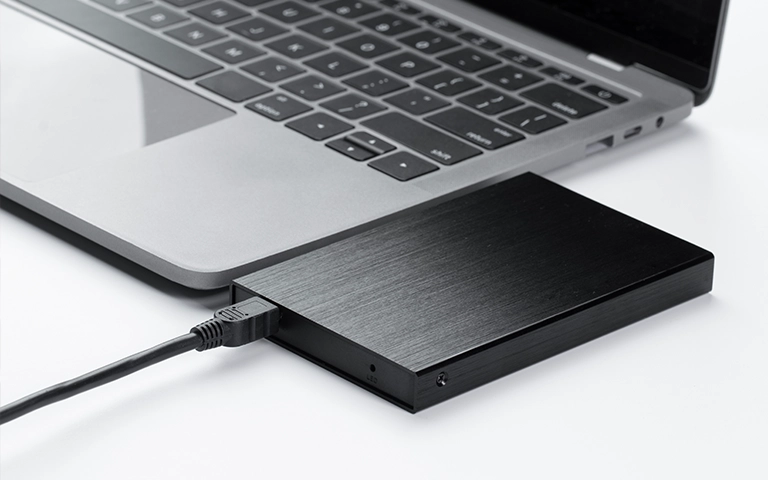
- Change the cable first. A marginal cable can mimic drive failure.
- Switch USB ports. Use a direct port on the machine, not a hub.
- Try a second computer. This helps isolate OS-specific issues.
- Confirm detection in the system tools. Check Disk Management on Windows or Disk Utility on Mac to see if the device is detected at all.
- Do one clean reconnect cycle. Disconnect, wait 10 seconds, reconnect, then stop repeating if symptoms persist.
If you are hearing unusual noises, a related scenario is covered here: learn more in Seagate external hard drive beeping.
Stop Now (Red Flags That Signal Hardware Failure)
At this point, the objective is not access. It is preventing additional damage that can permanently reduce recovery success.
Stop troubleshooting if you see any of the following
- Clicking, ticking, or grinding sounds
- Beeping or repeated spin up and spin down
- Drive disconnects every few seconds
- Computer freezes when the drive is connected
- Drive is detected with the wrong capacity
- Detection is extremely slow and inconsistent
If your Seagate drive is also showing noise symptoms, see related guidance in Seagate external drive not working.
Emergency Data Recovery Services
Unexpected data loss? Whether it’s a crashed system, failed storage device, or accidental deletion, our 24/7 emergency recovery service ensures priority assistance to retrieve your critical data.
How Professional Recovery Works for “Not Showing Up” Drives
When a Seagate external drive is not showing up, a professional workflow starts with stabilization. The objective is to prevent further degradation and create a controlled path to the data, not to force the drive to mount.
The first phase is diagnostics. The drive is evaluated to determine whether the failure is in the USB path, the enclosure bridge electronics, the file system, firmware, or the internal mechanics. This is the decision point that avoids guesswork and prevents destructive actions.
Next comes sector level imaging. Instead of running repairs on the original device, the priority is to clone what is readable in the safest sequence. This reduces repeated stress on a weakened drive and preserves recovery options if the device worsens.
Data extraction and reconstruction are then performed on the clone. That is where file system repair, partition reconstruction, and targeted file recovery can be executed without writing to the original drive.
If you want a comparable scenario focused on unstable media, explore this related case: bad sector recovery for Sonnics 1TB external hard drive.
Contact Us for Seagate External Drive Recovery
If your Seagate external hard drive is not showing up, stop risky fixes. When detection is unstable, every extra attempt can reduce what is recoverable.
Contact us for an evaluation. Share the drive model, capacity, OS, what Disk Management or Disk Utility shows, and any sounds or disconnects. We will confirm the failure layer and move straight to a safe recovery workflow.
If you want to see how a similar Seagate case is handled, read more in Seagate Barracuda 2TB recovery.
Industry Certifications
Trusted by leading organizations and certified by industry authorities