

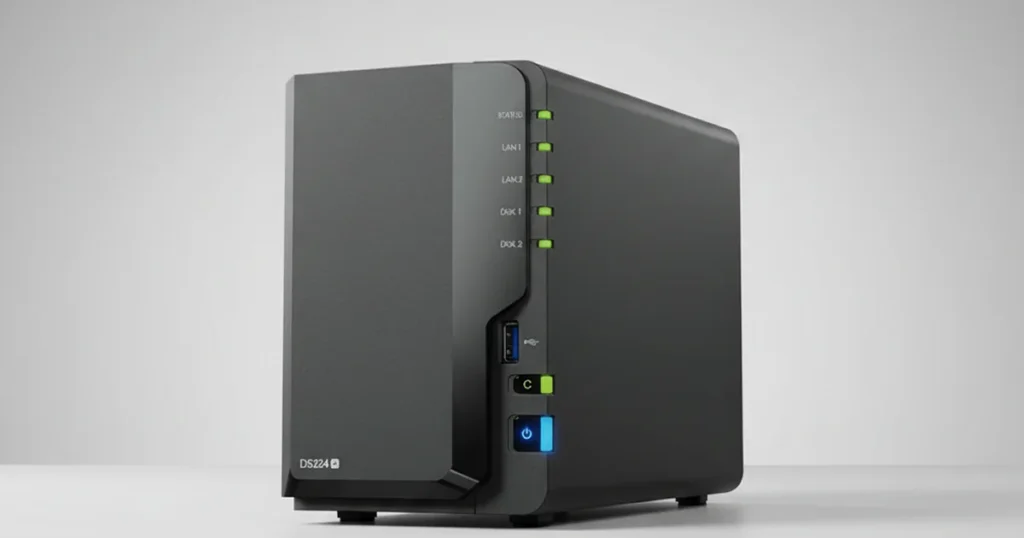
A Synology NAS with a flashing blue light is typically a boot failure, not a simple settings issue.
In practical terms, the system is stuck during startup and the volume may not mount.
This scenario often involves power instability, a failing drive set, DSM or volume corruption, or hardware faults on the NAS itself.
The biggest risk is making “quick fixes” that quietly damage RAID metadata or push marginal drives over the edge.
This guide breaks down what the blue light usually indicates, what you can safely check, what to avoid, and when recovery becomes a specialist job.

What the Flashing Blue Light Usually Means
A flashing blue power light on Synology usually indicates the NAS is not completing the boot sequence. The device is powered, but startup is failing before the system can load services and mount storage.
What it typically signals:
- Boot loop or stalled boot: the NAS cannot finish initialization.
- Hardware handshake failure: the NAS is not passing a basic hardware check (power, RAM, board).
- Storage layer blockage: the drives or RAID volume cannot be brought online, so DSM stalls.
- Firmware or system partition issues: the OS layer is damaged or inconsistent.
Quick note:
A flashing blue light is not a “diagnosis.” It is a symptom. The same light pattern can appear across multiple root causes, and the wrong fix can reduce recovery odds.
Industry Certifications
Trusted by leading organizations and certified by industry authorities


Most Common Root Causes (What’s Actually Failing)
Power delivery or PSU instability
A weak power adapter can keep the NAS in a partial startup state. It may light up, but voltage drops under load and the boot process never completes.
One or more drives are failing
If a disk is timing out, clicking, or intermittently dropping, the NAS can hang while trying to read system partitions or assemble the RAID. This is common in older arrays or after a recent power event.
RAID or volume cannot mount
If the array is degraded or metadata is inconsistent, Synology may hang during volume assembly. This is where “reboot and retry” often makes things worse.
DSM or system partition corruption
Synology stores system partitions across drives. If these partitions are corrupted or out of sync, the unit may fail to boot even if the user volume still has recoverable data.
Quick note:
RAM and mainboard faults can also cause a flashing blue light, but they are less common. We focus on ruling out the four items above first.
If this is a business critical Synology, explore our Synology NAS data recovery service: Synology NAS data recovery.

Do This First: Quick Triage Checklist
Do these checks first. They are low risk and help isolate the failure.
Safe checks
- Power down, wait 60 seconds, then power on once.
- Test the wall outlet and power strip.
- Inspect the power brick for heat, buzzing, or unstable behavior.
- Disconnect all USB devices and non-essential accessories.
- Listen for clicking or repeated spin-up attempts during boot.
- Ensure fans run and vents are not blocked.
- Reseat drives only if needed, keep exact bay order.
Stop and escalate
- Any clicking or grinding noises
- Boot loop beyond 10 to 15 minutes
- DSM asks to initialize or rebuild unexpectedly
For broader NAS recovery scenarios, learn more about NAS data recovery.
Don't Let Data Loss Ruin Your Business
Minimize business disruption. We retrieve lost data fast, so you can focus on what matters.
What Not to Do (Avoid These Recovery Killers)
These actions regularly turn a recoverable Synology case into a complex rebuild.
- Do not initialize the NAS or create a new volume. This can overwrite RAID and file system metadata.
- Do not run DSM updates while it’s unstable. Failed updates can compound corruption.
- Do not run “Repair” or “Rebuild” if drives are suspect. Rebuild writes heavily and can finish off weak disks.
- Do not swap drive bay order. Wrong order breaks RAID mapping and complicates reconstruction.
- Do not move drives into another Synology as a “test.” Migration attempts can change metadata and lock you into a worse state.
- Do not keep rebooting repeatedly. It increases stress and worsens marginal failures.
- Do not run filesystem checks unless you have verified images. Some repairs are destructive when the array is unstable.

Recovery Paths by Failure Type
| Symptom you see | Most likely issue | Safest next step | When to escalate |
|---|---|---|---|
| Flashing blue light, no DSM, no unusual noises | Power or DSM boot stall | Single controlled reboot, verify power brick and outlet | If it loops past 10 to 15 minutes |
| Flashing blue light with clicking or repeated spin-up | Mechanical drive failure | Power off and keep drives untouched | Immediately, do not rebuild |
| Drives show missing, volume degraded or crashed | RAID instability | Stop changes, document bay order and drive labels | If any drive shows errors or drops |
| DSM prompts to initialize or create a new volume | Metadata mismatch or corruption | Do not proceed, power off | Immediately, high overwrite risk |
| Boots sometimes, then freezes | Intermittent drive or PSU | Stop cycling, capture symptoms once | If freezes repeat or SMART shows issues |
| No lights except brief flash, then off | PSU or mainboard | Test with known-good PSU if available | If still dead or unstable |
Key point
When data matters, the recovery-first approach is to avoid write operations and move toward imaging and reconstruction under controlled conditions.
How We Recover Data From a Synology That Won’t Boot
- Triage and risk profiling: We confirm the Synology model, RAID type, drive count, and the exact boot behavior to avoid trial-and-error actions that change metadata.
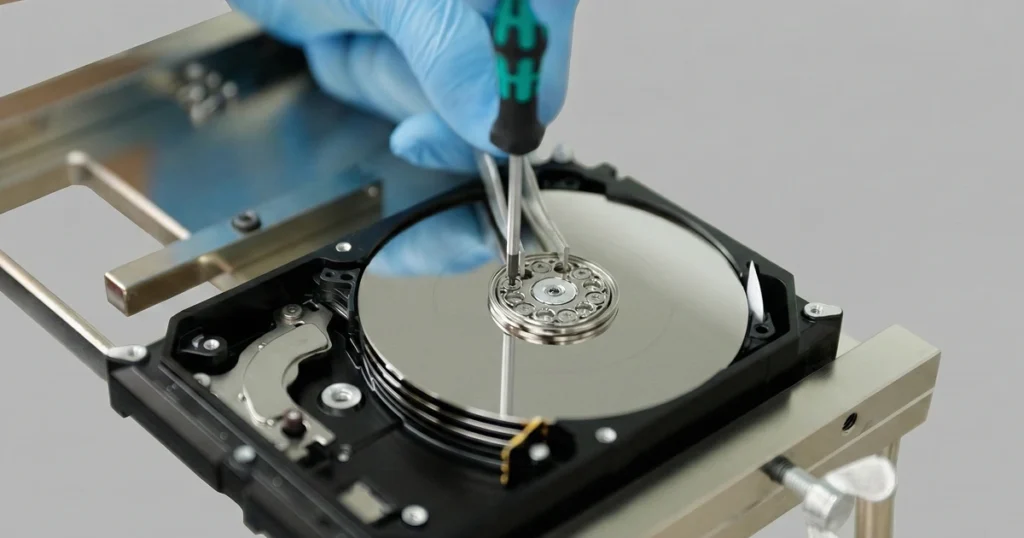
- Drive-level health checks: Each drive is assessed outside the NAS for timeouts, bad sectors, and mechanical warning signs. This step determines whether the case is stable enough to proceed normally or needs fragile-drive handling.
- Sector-by-sector imaging first: We image drives to controlled media before any reconstruction work. This protects the original evidence and prevents further wear on marginal disks.
- Virtual RAID reconstruction: We rebuild the array virtually, validating drive order, parity, and Synology-specific parameters before attempting file access. This is where most DIY attempts go wrong.
- File extraction and integrity validation: We extract the data from the reconstructed volume and verify folder structure and file integrity, then prepare results for secure delivery.
For deeper technical insight, review our related analysis on salvaging data from the ASUSTOR AS5402T NAS, which outlines proven recovery methodologies and real-world considerations.
Contact Us for Synology Flashing Blue Light Recovery
A Synology flashing blue light typically means the NAS cannot complete boot or mount the volume.
In many cases, the data is still recoverable, but DIY actions like repeated restarts, forced repairs, rebuilds, or initialization can permanently complicate recovery.
Contact us to evaluate your Synology case and provide a clear recovery plan based on the device model, RAID layout, and failure behavior.
Emergency Data Recovery Services
Unexpected data loss? Whether it’s a crashed system, failed storage device, or accidental deletion, our 24/7 emergency recovery service ensures priority assistance to retrieve your critical data.